Beyond Human IDEs: Running Agentic Cloud Development Environments in Eclipse Che
Introduction
AI coding agents have shifted from autocomplete helpers to autonomous teammates that can edit code, run tests, and open pull requests. Today, they often run in the same environments developers already use every day: a local machine or a full IDE cloud workspace.
What if, for routine, well-defined tasks, those agents could run in their own lightweight, isolated environments instead, so you could stay focused on creative problem-solving and review what the agents produce?
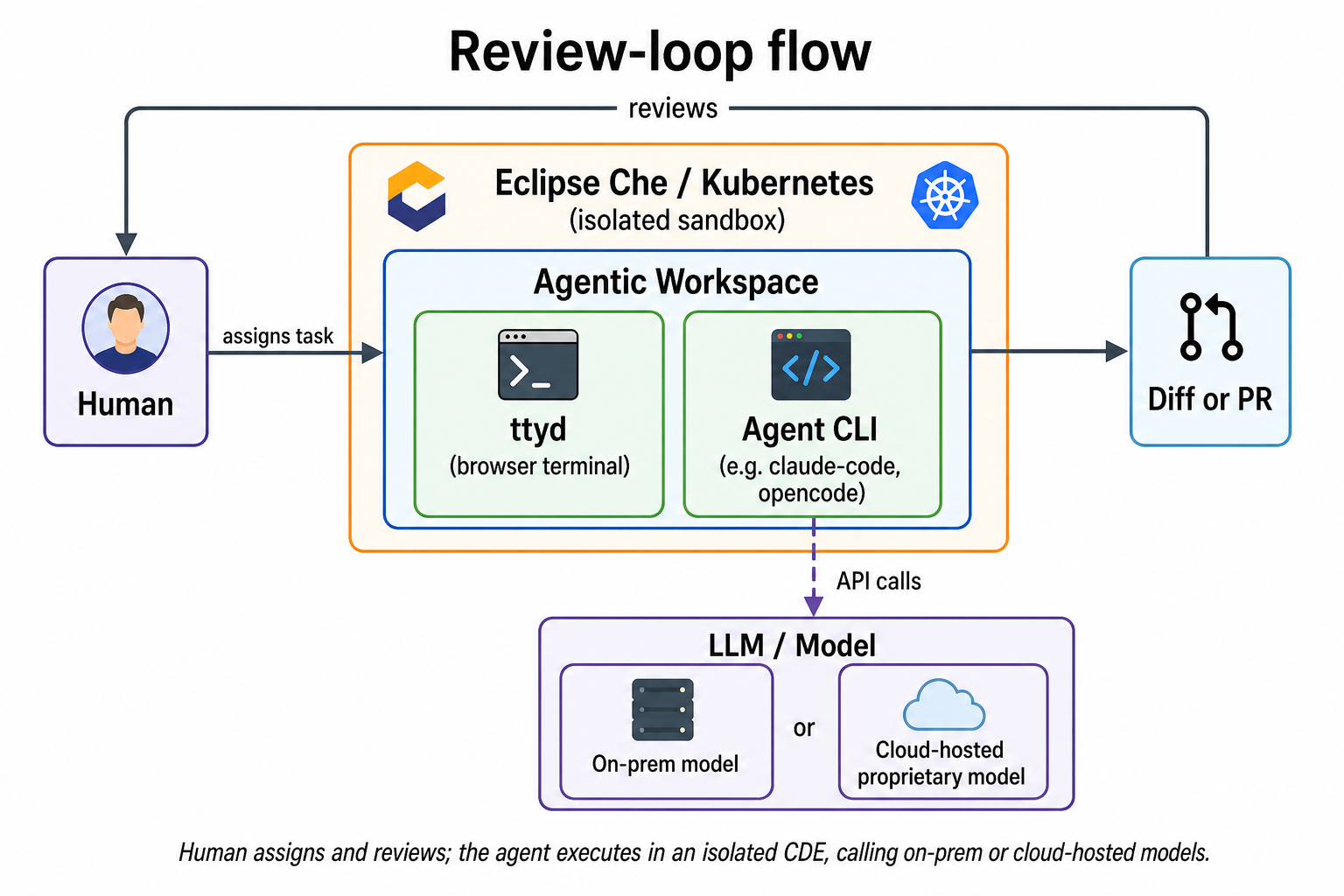
One way to do that is with Agentic Workspaces on Eclipse Che. Che’s Cloud Development Environments (CDEs) let you spin up terminal-centric workspaces dedicated to autonomous agents: safer agentic automation in isolated sandboxes, with the human in the review loop, either inspecting a diff in the workspace or reviewing a pull request the agent creates.
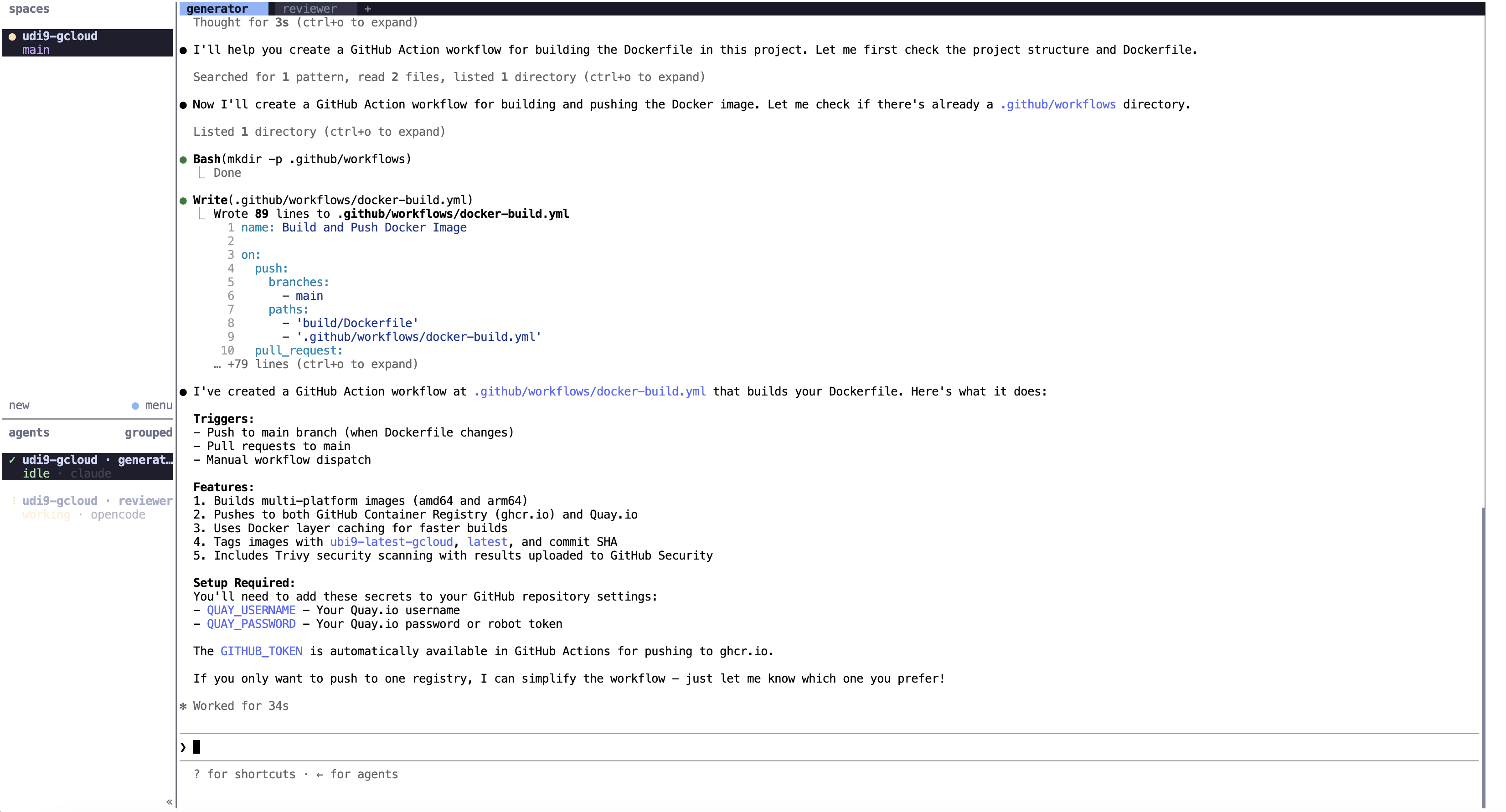
Here is the end result this post walks through: Claude Code and OpenCode running side by side in an Eclipse Che workspace with the Herdr editor definition.
Traditional CDEs vs Agentic CDEs
Traditional CDEs are built around a full IDE experience for humans. In this post, we use Agentic CDE to describe a terminal-centric Che workspace built for terminal-based coding agents rather than human IDE use. Agentic CDEs keep the same isolation and lifecycle model, but slim the workspace down to the minimal tooling an agent needs. One does not replace the other; each is built for different use cases.
| Capability | Traditional CDEs | Agentic CDEs |
|---|---|---|
|
Primary user |
Human developers working interactively in an IDE |
Autonomous agents executing tasks, with humans in the review loop |
|
Workspace shape |
Full IDE (for example, VS Code) plus extensions, UI, and layouts |
Slim terminal-centric runtime with terminal-based
coding agents and a web terminal such as
|
|
Resource footprint |
Higher CPU and memory to host a browser IDE and rich UI |
Lower overhead; more workspaces can fit on the same cluster |
|
Day-to-day interaction |
Developer lives in the editor: coding, debugging, and exploring |
Developer assigns work, monitors progress, and reviews diffs or pull requests |
|
Best suited for |
Interactive development, pairing, and complex local-style workflows in the cloud |
Routine or parallel agent tasks that do not need a full graphical IDE |
|
Strengths |
Familiar IDE UX, rich debugging, and strong human productivity tooling |
High density, lower cost per workspace, and a tighter sandbox for unattended agent runs |
|
Trade-offs |
Heavier and often more than an agent needs for CLI-driven work |
Less convenient for deep interactive editing; humans review rather than live in the workspace |
The Human-in-the-Review-Loop Workflow
An agentic workspace flips the usual CDE interaction model. The developer is no longer living inside the IDE day to day; they are the orchestrator and reviewer.
-
Assign a task: the human starts a Che workspace and points an agent at a bug, feature, or specification.
-
Let the agent work: the agent edits code, runs tests, and iterates inside the isolated workspace, observed through
ttydif needed. -
Review the outcome: when the agent finishes, the human either inspects the diff in that workspace or, more commonly for team workflows, reviews a pull request the agent created.
That last step is the control point. The agent does the execution; the human decides what merges.
The Stack: Eclipse Che and ttyd
In this post, we show one practical stack: Eclipse Che for
the workspace lifecycle, plus ttyd for a
lightweight browser terminal. The idea is to strip away the
traditional desktop IDE layer and keep a minimal,
terminal-centric environment.
| Component | Role in the Agentic Workspace |
|---|---|
|
The Kubernetes-native control plane. It handles workspace lifecycle, secure container isolation, RBAC, and compute resource allocation. |
|
|
A simple, fast utility that shares a Linux terminal over the web, allowing users to monitor their agents in real-time through any browser. |
Together, they create a secure sandbox where AI agents can run without overloading a developer’s local machine or cluttering their primary workspace. You get a browser-accessible shell backed by Kubernetes isolation, with no full IDE required.
Step-by-Step: Running an Agentic CDE in Eclipse Che
Here is a simple way to start an agentic workspace from the Eclipse Che dashboard.
Prerequisites:
-
Access to an Eclipse Che instance (for example, a local or team deployment)
-
Credentials for an LLM provider your coding agent can use (on-prem or cloud-hosted)
-
A Git repository URL to import in the Import from Git section
-
Optional: Git credentials configured in Eclipse Che so the agent can push branches and open pull requests on your Git provider automatically
1. Go to the Eclipse Che Dashboard
Open your Che dashboard in the browser and begin creating a new workspace.
2. Choose an Editor Definition
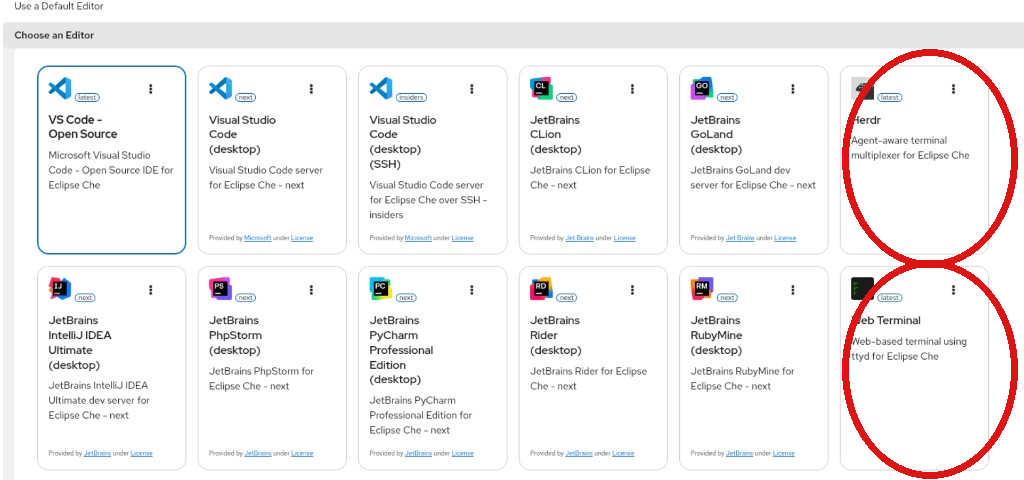
Open the Choose an Editor tree and select a lightweight, terminal-centric editor definition instead of a full IDE. For an agentic CDE, pick either:
-
Web Terminal: a minimal
ttyd-based shell in the browser -
Herdr: an agent-aware terminal multiplexer on top of the same web-terminal model
3. Provide a Git Repository URL and Create the Workspace
In the Import from Git section, paste the Git repository URL for the project you want the agent to work on. Then select Create & Open to start the workspace.

4. Wait for the Workspace to Become Ready, Then Launch a Coding Agent
Wait for the workspace to become ready. Once it is ready,
Che opens the ttyd-based terminal in the
browser. From there, launch your preferred terminal-based
coding agent (for example, claude-code or
opencode), point it at a task or
specification, and let it work inside the isolated
workspace.
|
Note
|
Terminal-based coding agents (such as Claude Code
or OpenCode) must already be present in the
DevWorkspace container image, or installed or
otherwise injected into the workspace before you
use them. One simple option is a Devfile
|
|
Note
|
Coding agents also need authentication configured for the models they call. That step varies by tool and model provider (for example API keys, login flows, or on-prem endpoint settings). |
When the agent finishes, stay in the review loop: inspect the diff in the workspace, or let the agent open a pull request and review that through your normal Git workflow.
Here is an example of Claude Code and OpenCode running in a workspace with the Herdr editor definition. Herdr shows each agent in the sidebar (idle or working) while the active pane streams the agent’s tools and output.
|
Tip
|
If you chose Herdr, you can split panes and run multiple agents in parallel, while Herdr tracks whether each one is idle, working, or blocked. The platform underneath matters more: with Che, each agent still gets its own sandboxed, Kubernetes-native workspace. |
How Agentic CDEs help Teams
Agentic CDEs keep each coding agent in its own Kubernetes-isolated workspace, instead of sharing a developer laptop or a long-lived VM. Using Che for ttyd-driven agent workspaces can build on that foundation in a few practical ways:
-
Contained sandbox execution: Giving autonomous tools raw access to a local machine is a significant security and operational risk. With Eclipse Che, you can confine the agent to a secure, RBAC-bounded Kubernetes namespace. If an agent misbehaves or runs a destructive script, the blast radius stays contained within that workspace.
-
Higher workspace density: Without the overhead of complex browser-based IDE UIs, terminal-centric workspaces typically require less CPU and memory, so teams can run more agent workspaces on the same cluster.
-
Parallel asynchronous scaling: A developer can spin up multiple independent agent workspaces simultaneously from their browser, each tackling a different task or bug report, without consuming local compute.
Try It Yourself
If you do not have a Che instance handy, you can try this workflow on Eclipse Che hosted by Red Hat through the Developer Sandbox. Open workspaces.openshift.com, choose a terminal-centric editor definition, and import a Git repository as described above.
Conclusion
Software engineering is evolving, and so are CDEs along with it. They are no longer only digital desktops for human developers; they can also host safer agentic automation in isolated workspaces.
With Eclipse Che’s Kubernetes-native orchestration and
lightweight tools like ttyd, you can try this
pattern today: spin up a terminal-centric workspace, run a
coding agent inside it, and keep humans in the review loop
through diffs or pull requests.